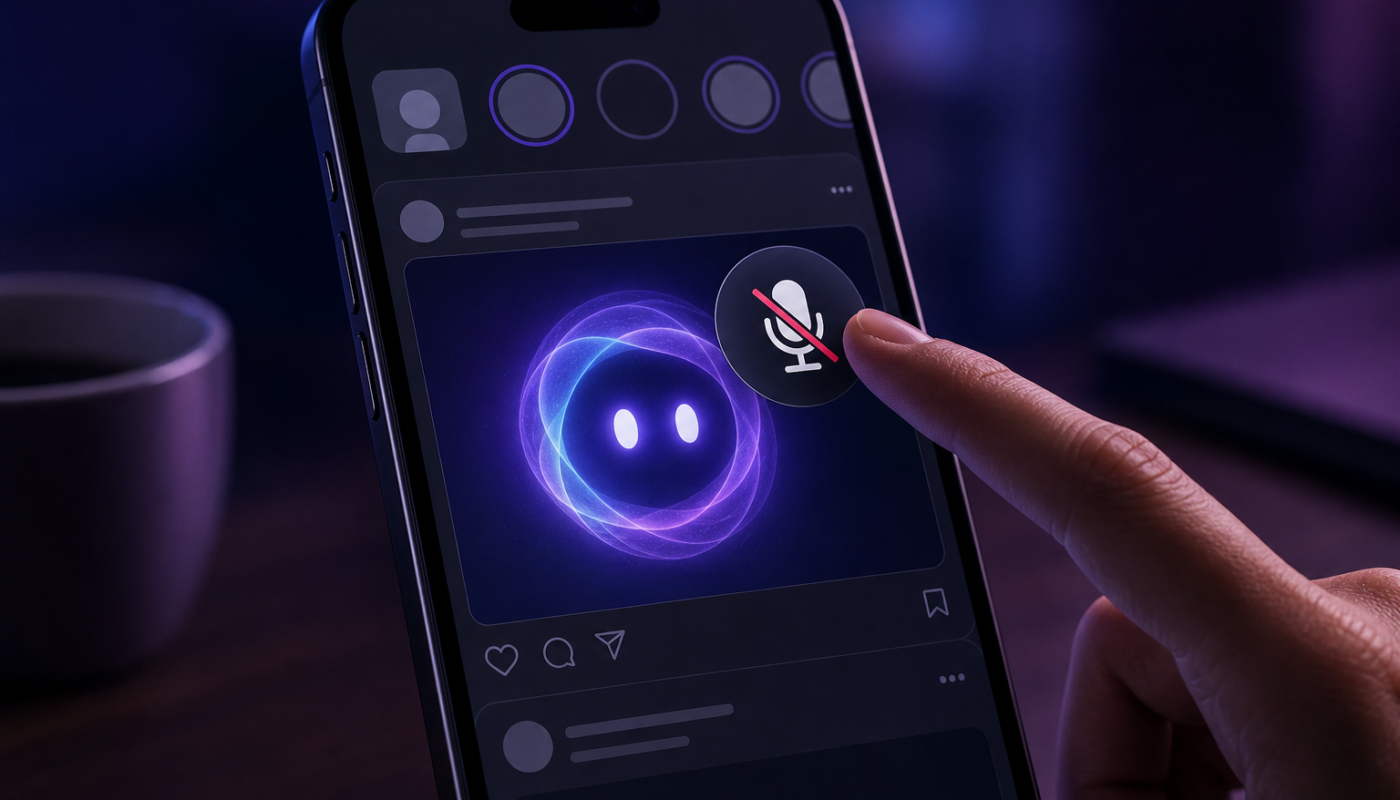
If you are wondering how to turn off Meta AI on Instagram, the short answer is that there is usually no single setting that removes every Meta AI feature. Depending on your account, location and app version, Meta AI may appear in Instagram Search, direct messages, suggested prompts or creative tools. You can reduce or silence some of these appearances, but other built-in AI features may remain available.
This guide explains the practical options for managing Instagram Meta AI without promising a setting that may not exist on your device. Instagram’s menus can change, so use the closest matching option in your app and check Meta’s current Help Centre if a control is missing.
How to turn off Meta AI on Instagram
First, check whether your Instagram app offers a dedicated control for Meta AI. Feature availability is not identical for every account, and Meta can test different interfaces.
- Open Instagram and go to your profile.
- Tap the menu button, usually shown as three horizontal lines.
- Open Settings and activity.
- Use the settings search field and look for terms such as Meta AI, AI, assistant or messages.
- If Instagram presents an AI-specific control, review its description before switching it off or reducing its activity.
If no Meta AI switch appears, that does not mean you have missed it. Instagram may not offer a full disable option for your account. In that situation, the most useful approach is to mute or remove the individual AI conversation and avoid starting new AI interactions.
Mute the Meta AI conversation
If Meta AI appears as a conversation in your Instagram inbox, you may be able to silence its notifications:
- Open Instagram and tap the messages icon.
- Open the Meta AI conversation, if one is listed.
- Tap the conversation name or information button at the top.
- Choose Mute, Mute messages or a similarly named notification option.
- Select how long you want notifications muted, if Instagram provides a time period.
This is one of the simplest ways to disable Meta AI on Instagram from interrupting you. Muting stops or reduces alerts; it does not remove the AI feature from Instagram or prevent the assistant from appearing elsewhere in the app.
Delete the AI chat from your inbox
You can generally remove a conversation from your own inbox by swiping left on it, pressing and holding it, or opening its conversation menu and choosing Delete. The exact gesture depends on your phone and Instagram version.
Deleting the chat only clears it from your view. It is not the same as disabling Meta AI, and it may not prevent Instagram from showing the assistant again later. Avoid treating chat deletion as a privacy or account-wide control.
What you can and can’t disable
Understanding the difference between muting, hiding and disabling will save you time. Instagram’s AI features can appear in several separate parts of the service, rather than operating as one independent app.
What you can usually control
- Notifications: You may be able to mute an AI conversation or reduce related alerts.
- Conversation visibility: Deleting a Meta AI chat can remove it from your inbox view.
- Whether you interact with it: You can choose not to ask questions, use AI prompts or send content to the assistant.
- Some personalisation and privacy settings: Instagram and Meta may provide controls over activity, recommendations, account privacy or information used across their services. These settings vary and should be read carefully.
What you usually cannot completely control
- The platform-wide AI infrastructure: There may be no universal switch that removes Meta AI from Instagram Search, messaging or other supported surfaces.
- AI-related prompts and entry points: An icon, search suggestion or prompt may continue to appear even after you mute a chat.
- Every AI-powered feature: Turning off one creative or recommendation setting, where available, does not necessarily turn off all Meta AI tools.
This is why searches for remove Meta AI Instagram often lead to incomplete advice. You can remove a visible chat or silence a notification, but that is different from uninstalling Meta AI from the service.
Reduce unwanted Meta AI interactions and protect your privacy
If your main concern is privacy rather than notifications, focus on what you share with the assistant. Do not enter passwords, payment information, identity documents, confidential work material or sensitive personal details into an AI chat. Treat any AI conversation as a cloud-based service, not as a private notes app.
Review the privacy and account settings available in Instagram and Meta’s Accounts Centre. Look for information about activity, connected experiences, personalisation and how interactions with AI features are handled. The names and availability of these controls can change, so read the current explanation shown in your account rather than relying on an old screenshot or third-party tutorial.
Also consider these practical steps:
- Keep Instagram updated so you can see the latest privacy and notification controls.
- Use a private account if that suits your needs, while remembering that account privacy does not necessarily remove platform AI features.
- Review connected apps and remove access you no longer need.
- Do not tap AI prompts accidentally if you do not want to start an interaction.
- Report a misleading, intrusive or inappropriate AI response through Instagram’s in-app reporting tools.
For wider changes affecting Instagram, it is worth following a regularly updated overview of social media updates across Instagram and other platforms. AI settings are being introduced and adjusted across several products, so a setting documented today may look different later.
Troubleshooting when the Meta AI option is missing
If you cannot find an option to turn off AI Instagram features, work through these checks:
- Search Settings and activity: Menu names can move, and the setting may not be listed where older guides place it.
- Update the app: Install the latest official version from the Apple App Store or Google Play, then reopen Instagram.
- Check another entry point: A control for a chat may be available from the inbox even when there is no account-wide AI setting.
- Restart and sign in again: This can refresh a temporary interface problem, although it will not create a feature that Meta has not enabled for your account.
- Check official support: Use Instagram’s Help Centre for the current instructions and availability information.
Be cautious with websites or apps claiming they can permanently remove Meta AI from Instagram. Unofficial modified apps, browser extensions and requests for your Instagram password can put your account and private messages at risk.
Does turning off Meta AI affect normal Instagram features?
Muting or deleting an AI conversation should not be confused with disabling Instagram messaging, Search or recommendations altogether. Those standard features continue to operate independently. Likewise, changing ad or recommendation preferences may alter what you see without removing Meta AI.
If you use Instagram for work, review any business or creator workflows that rely on automated replies, content suggestions or messaging tools before changing settings. AI features can be separate from ordinary inbox controls, and disabling one option may not affect another.
For a broader view of how artificial intelligence settings and products are changing, see DigitalTech’s guide to AI news, tools and industry changes. The important point is to distinguish between a notification control, a privacy preference and a genuine account-wide disable option.
Actionable takeaway
To turn off Meta AI on Instagram, first search Instagram’s settings for an AI-specific control. If none exists, mute or delete the Meta AI conversation, avoid using AI prompts and review your privacy settings. These steps can reduce unwanted interaction, but they may not remove every AI entry point from Instagram.
What to check next
- Instagram’s current Settings and activity menu.
- The notification controls inside any Meta AI chat.
- Meta’s latest privacy and AI information in the Help Centre.
- Whether an app update has changed the available options on your device.
Reference: For background context, see Meta smart glasses on Wikipedia.