
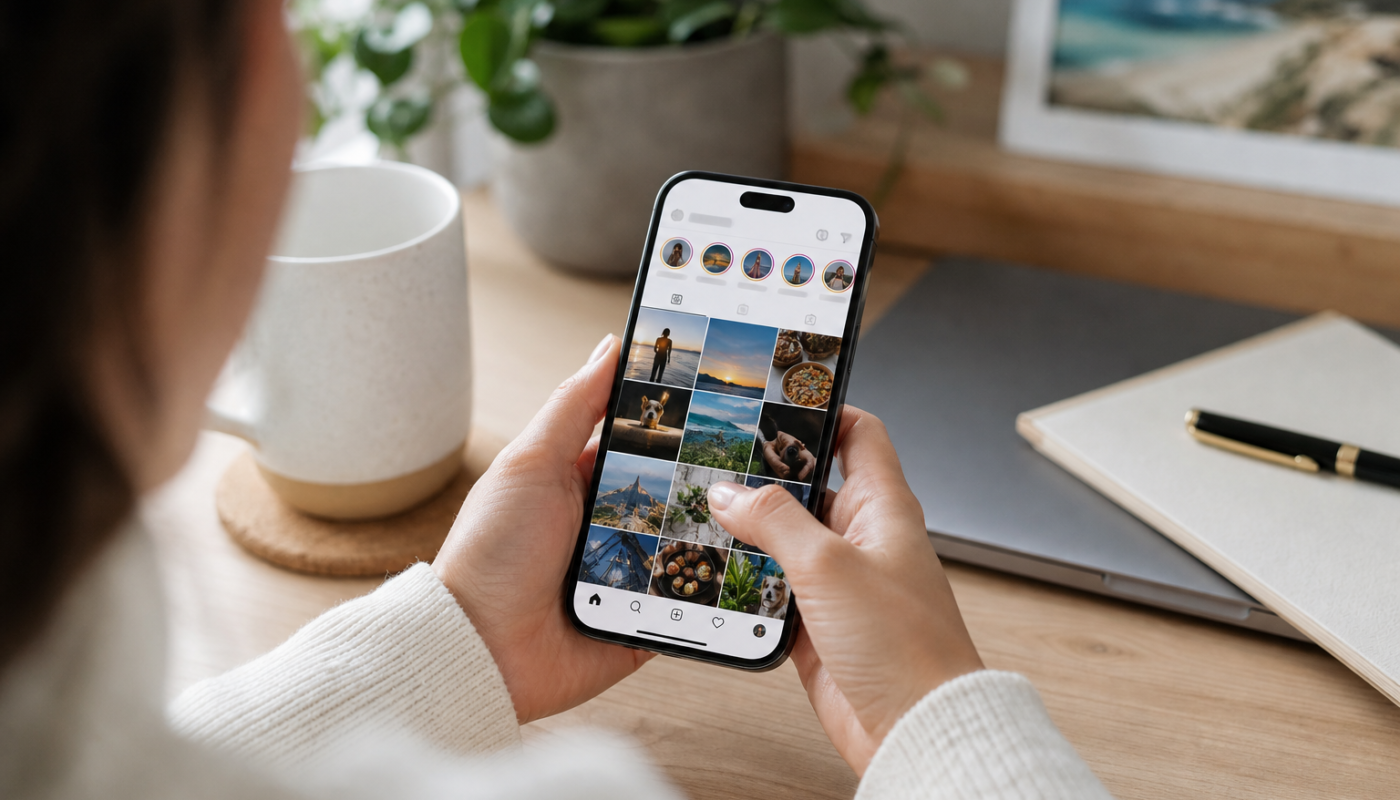
Learning how to repost an Instagram post is useful when you want to share a helpful tip, celebrate someone’s work or recommend a Reel to your followers. Instagram provides several sharing methods, including Stories, direct messages and, where available, a native repost feature for public content. The exact buttons can vary by account, region and app version, so the instructions below focus on the most reliable options.
Before sharing, check whether the account is public and consider whether the creator would be comfortable with their content being reposted. Keep the original attribution visible whenever possible, and avoid downloading and uploading someone’s work as if it were your own.
How to repost an Instagram post to your Story
Sharing a feed post or Reel to your Story is usually the simplest way to repost on Instagram. It creates a Story card that links back to the original post and identifies the account that published it.
Steps for sharing a feed post or Reel
- Open Instagram and find the post or Reel you want to share.
- Tap the paper-plane share icon beneath the post.
- Select Add to story or a similarly labelled Story option.
- Use the editing tools to resize the post, add a background, mention someone or include a short comment.
- Tap Your story, Close Friends or the relevant publishing option.
The original post normally remains visible within the Story and can be tapped by viewers to open the source. This is preferable to taking a screenshot because it preserves a direct link and makes attribution clearer.
If you cannot see the Story-sharing option, the account may be private, the creator may have disabled resharing, or the post may not be eligible. Some content types and branded posts can also have different sharing restrictions.
How to repost an Instagram post to your feed
Instagram has been introducing and changing native repost tools, and availability may differ between accounts. If your app shows a Repost button or circular-arrow icon on an eligible public post or Reel, you may be able to publish it through Instagram’s built-in repost system rather than using a third-party app.
Using Instagram’s native repost option
- Open the public feed post or Reel you want to share.
- Look for the Repost control near the usual like, comment and share actions. It may be shown as a dedicated icon or inside the share menu.
- Tap the option and review any available audience or note settings.
- Confirm the repost.
Depending on the current Instagram interface, reposted content may appear in a dedicated area on your profile or be distributed to followers in a way that is separate from your original grid posts. Instagram can change these labels and layouts, so check the confirmation screen carefully before publishing.
If the native option is missing, do not assume your account is faulty. The feature may not be available for your account, the original post may be private, or the creator may have limited resharing. Updating Instagram through the official App Store or Google Play listing can help, although an update does not guarantee that every feature will appear immediately.
Other ways to share an Instagram post
There are times when a feed repost is not available, but you still want to share the content with a specific audience. Instagram’s built-in sharing tools are generally safer than third-party reposting services.
Share the post in a direct message
Tap the paper-plane icon, choose a person or group, add an optional message and press Send. This is useful when you want to recommend a post privately without publishing it to your followers.
Copy the link
Open the post’s share menu, select Copy link and paste the URL into a message, email or another platform. Link sharing keeps the original creator and post attached to the source. It is also a practical option if Story sharing is disabled.
You can also share a post outside Instagram where the creator has made it publicly accessible, but check the platform’s rules and the creator’s preferences first. For example, copying a caption or image into another service may not provide the same attribution as sharing the original link.
What to do if Instagram repost is not working
When a repost option does not appear or fails to publish, work through these checks:
- Check the account privacy: posts from private accounts generally cannot be reshared by people who are not approved followers.
- Check the creator’s settings: some accounts restrict sharing to Stories or messages.
- Try a different post type: a Reel, carousel and single-image post may expose different sharing controls.
- Update the app: install the latest official version available for your device, then restart Instagram.
- Check your connection: switch between Wi-Fi and mobile data if the share menu loads slowly or publishing stalls.
- Clear temporary problems: close and reopen the app, sign out and back in, or reinstall it only after confirming you know your login details.
- Review account restrictions: repeated policy issues, unusual activity or temporary limits can affect sharing features.
For broader context on why some posts appear more prominently than others, read our guide to the Instagram algorithm and ranking. Instagram’s controls and sharing behaviour can change, so official in-app help is the best place to confirm an option that is not shown.
Reposting etiquette, copyright and privacy
A repost is not automatically permission to reuse someone else’s work. The safest approach is to use Instagram’s native sharing tools, leave the original username attached and tag the creator when appropriate. If you want to use an image or video in a new post, advertisement, business account or other commercial context, ask the creator for permission first.
Be especially careful with screenshots. They can remove the original username, caption and context, while also exposing private messages or personal information. Do not repost content from a private account without clear consent, and avoid sharing posts that reveal someone’s location, contact details or other sensitive information.
Creators can also remove or limit access to a post after you have shared it. If the original disappears, your Story may show an unavailable post or stop working as expected. Removing your share is usually the simplest response rather than trying to upload a saved copy.
Quick takeaway
To repost an Instagram post, tap the paper-plane icon and choose Add to story, use Instagram’s native Repost control if it appears, or send the post as a direct message or link. Keep attribution visible, respect privacy and ask permission before reusing content outside Instagram.
What to check next
Because Instagram regularly tests and changes sharing features, check the latest in-app menu on your account, the original creator’s privacy settings and Instagram’s official help guidance. You can also follow our roundup of social media updates for wider platform changes.
Reference: For background context, see Threads (social network) on Wikipedia.


[…] How to Repost an Instagram Post: Feed, Story and Repost Options […]