
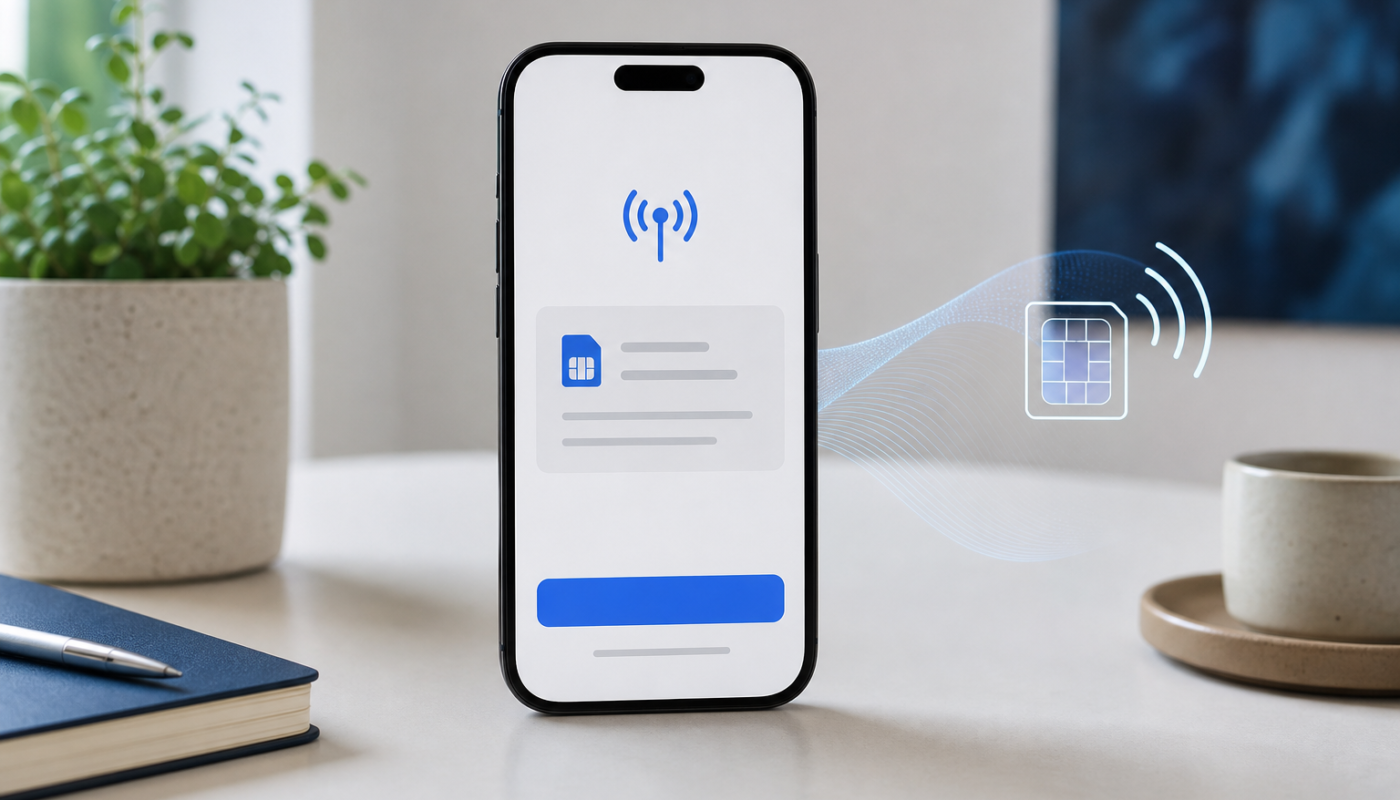
Learning how to activate eSIM on iPhone is usually straightforward, but the exact process depends on your mobile carrier, iPhone model and whether you are moving a number from another phone. An eSIM is a built-in digital SIM rather than a removable plastic card, so you can activate a compatible mobile plan by scanning a QR code, using a carrier app or transferring service from a nearby iPhone.
This guide covers the main iPhone eSIM setup methods, what to check before you begin and the most useful fixes when activation does not go as planned. Carrier names, menu wording and transfer support can vary by country, including Australia, so confirm the final requirements with your provider.
Before you add an eSIM to iPhone
Complete a few checks before starting. They can prevent an interrupted activation or an avoidable trip to your carrier’s support team.
- Check compatibility: Most recent iPhones support eSIM, but availability can differ by model and region. iPhone XS, iPhone XS Max and iPhone XR introduced eSIM support in many markets, while some regional variants have different capabilities.
- Confirm carrier support: Your mobile provider must support eSIM activation for your plan. Some prepaid, business, watch or international plans may have separate requirements.
- Connect to Wi-Fi: Your iPhone may need an internet connection to download the carrier profile and complete activation.
- Update your backup: If you are moving to a new iPhone, make an iCloud or computer backup first. Do not erase your old phone until calls, messages and mobile data work on the new one.
- Have your details ready: A carrier-issued QR code, activation link, account login, verification code or the old phone may be required.
You can check your device identifiers by opening Settings > General > About. Look for the EID and IMEI details. If your carrier asks for an EID, copy it carefully rather than guessing which identifier they need.
How to activate eSIM on iPhone with a QR code
A QR code is one of the most common ways to activate a new mobile plan. Your carrier may send it by email, display it in an account portal or provide it on printed paperwork.
- Connect your iPhone to Wi-Fi and open Settings.
- Tap Mobile or Cellular, depending on your region and iOS wording.
- Choose Add eSIM or Add Cellular Plan.
- Tap Use QR Code, then scan the code supplied by your carrier.
- Follow the on-screen instructions to confirm the plan and wait for activation.
- Choose a label such as Personal, Work or Travel so you can identify the line later.
- Select which number should handle default voice calls, iMessage, FaceTime and mobile data.
If the QR code is displayed on the same iPhone, you may need to open it on another screen or print it. Some iOS versions and carrier systems also let you select a saved QR image, but this option is not universal. If scanning fails, ask the carrier for an activation link, a replacement QR code or manual instructions.
Using a carrier app or activation link
Some providers let you complete an activate eSIM iPhone process through their official app or a secure web link. Install the carrier’s app from the App Store, sign in to the correct account and look for options such as Activate SIM, Replace SIM or Set up eSIM.
Only use a link or app obtained directly from your carrier. Avoid forwarding activation QR codes or sharing them publicly because they may be linked to your mobile account. When the app asks permission to add a mobile plan, review the number and plan details before accepting.
How to set up eSIM on iPhone by transferring your number
If you are moving from an older iPhone, your carrier may support a direct eSIM transfer. This can be quicker than waiting for a QR code, but both phones generally need to be nearby, unlocked and connected to Wi-Fi or Bluetooth.
- Turn on the new iPhone and begin the normal setup process, or open Settings > Mobile after setup.
- Tap Set Up Mobile, Add eSIM or a similarly named option.
- Choose the option to transfer from a nearby iPhone if it appears.
- Keep both phones close together and follow the prompts on each device.
- Confirm the transfer using the passcode or verification step requested by Apple or your carrier.
- Wait for the old line to deactivate and the new iPhone to connect to the network.
Direct transfer is not available with every carrier or plan. If the option is missing, use your carrier’s QR code or app instead. If you are transferring from Android, a direct iPhone-to-iPhone method will not apply; contact the carrier for an eSIM activation process designed for your account.
Choosing your default line
After adding the plan, open Settings > Mobile and review the line settings. With dual SIM, you can choose a default number for calls and messages, assign a number to a contact, and select which line uses mobile data. The labels matter, particularly if you use a local plan alongside a travel eSIM.
Check Mobile Data and consider switching off Allow Mobile Data Switching if you do not want the iPhone to use the other line automatically. If you use a travel eSIM, confirm roaming settings with the carrier before relying on it overseas.
iPhone eSIM activation troubleshooting
Most activation errors relate to the carrier account, network connection or an already-used QR code. Try the following in order.
- Restart the iPhone: A restart can refresh the mobile registration process after the eSIM profile has been installed.
- Check Wi-Fi and signal: Move to an area with reliable Wi-Fi, then try again. If the carrier requires SMS verification, make sure the old phone can still receive messages.
- Turn Airplane Mode on and off: Enable it for about 30 seconds, disable it, then check whether the line connects.
- Install carrier settings: Open Settings > General > About and wait briefly. If a carrier settings update appears, accept it.
- Check the plan status: In Settings > Mobile, confirm that the new line is switched on. A line marked No Service may still be waiting for carrier approval.
- Recheck the QR code: A QR code may be single-use, expired or tied to a different account. Ask the carrier to issue another one rather than repeatedly scanning the same code.
- Confirm the iPhone is unlocked: Go to Settings > General > About and check Carrier Lock, where shown. A locked phone may reject a plan from another provider.
- Update iOS carefully: Install an available stable iOS update if your carrier recommends it, but keep the iPhone connected to power and Wi-Fi during the process.
A last-resort network reset is found under Settings > General > Transfer or Reset iPhone > Reset > Reset Network Settings. This removes saved Wi-Fi networks, VPN settings and other network data, so use it only after recording passwords and confirming that the carrier supports the step.
When to contact your mobile carrier
Contact the carrier if the eSIM will not download, the number has not transferred, calls fail after activation or the account shows an unexpected plan. They may need to verify your identity, remove an old SIM registration, replace a faulty QR code or enable eSIM on the account.
Keep the iPhone’s model, EID, IMEI, account details and any exact error message available. Do not delete a working eSIM profile simply to retry activation unless the carrier tells you to. Removing it can make recovery more difficult, particularly if the original QR code was single-use.
If you are configuring a new iPhone beyond its mobile connection, our guides to iPhone model requirements and features and Apple Intelligence features and privacy can help you check other device capabilities. Feature availability can vary by model, language, region and software version.
Actionable takeaway
To activate an eSIM on iPhone, connect to Wi-Fi, open Settings > Mobile > Add eSIM, then use your carrier’s QR code, app or supported transfer method. Test calls, texts and mobile data before erasing your old phone.
What to check next
- Verify your iPhone model and carrier eSIM compatibility.
- Confirm which line is set as the default for calls and mobile data.
- Check roaming and data-switching settings if you use a travel eSIM.
- Keep your carrier’s support details handy if activation remains pending.
Reference: For background context, see IOS 16 on Wikipedia.

[…] to an iPhone, plan the transition before you erase your old handset. For example, our guide to activating an eSIM on iPhone covers setup, transfer and common troubleshooting steps. Keep your old phone available until […]