The WhatsApp delete for everyone time limit is generally about two days and 12 hours from when a message was sent. Within that window, you can try to remove a message from an individual or group chat on Android, iPhone and supported desktop apps. After the window expires, WhatsApp normally removes the option and leaves you with Delete for me instead.
That does not make a sent message completely disappear from the real world. Someone may have already read it, replied to it, saved attached media, copied the text or captured a screenshot. The feature is best understood as a way to remove the message from the WhatsApp chat view, not as a guaranteed way to erase every trace.
What is the WhatsApp Delete for Everyone time limit?
WhatsApp’s current general window is approximately 60 hours after sending. The countdown starts when the message is sent, rather than at midnight or when the recipient opens the chat. If you send a message at 3 pm on Monday, the Delete for Everyone option may remain available until roughly 3 am on Thursday, subject to WhatsApp’s handling of time and app connectivity.
The wording and availability can change as WhatsApp updates its apps and policies, so treat this as a practical guide rather than a permanent guarantee. Device software, app versions, connection problems and changes made by WhatsApp can affect what you see. If the option is important, update WhatsApp through the official app store and try to delete the message as soon as possible.
The limit applies to messages you sent, including text, photos, videos, voice messages, stickers and some shared content. It is not normally a tool for deleting another person’s messages. In a group, group administrators do not automatically gain the ability to remove every message; administrator controls and message-removal features can vary by WhatsApp’s current rules.
Delete for Everyone versus Delete for Me
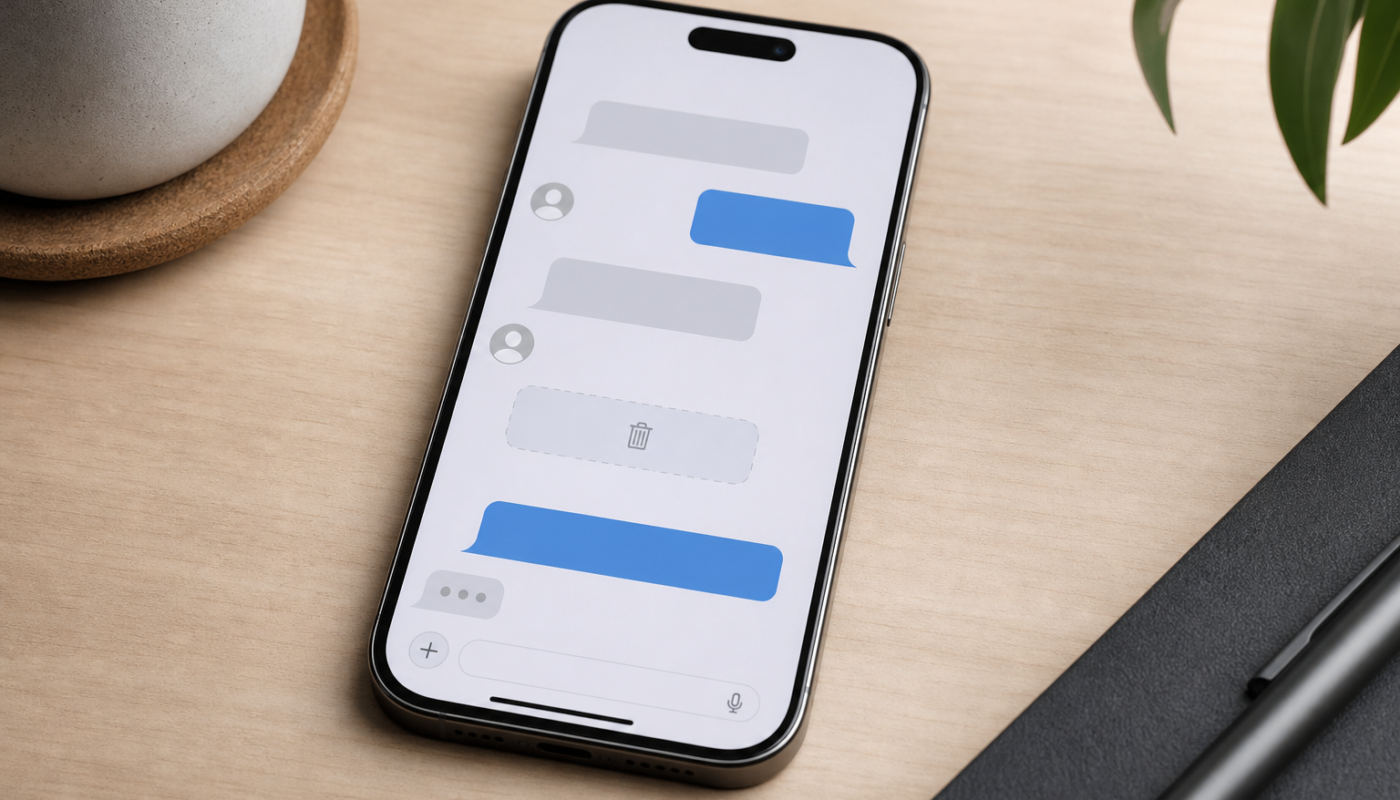
- Delete for Everyone: attempts to remove your message from the chat for all participants. The conversation usually displays a notice such as “This message was deleted”.
- Delete for Me: removes the message only from your copy of the chat. Other participants can still see it.
Choose carefully. If you tap Delete for Me when you meant to use the delete for everyone WhatsApp feature, the message may remain visible to everyone else. WhatsApp has offered a short undo opportunity for some accidental “Delete for Me” actions, but its availability and timing may vary by app version. If an undo prompt appears, use it immediately.
How to delete a WhatsApp message for everyone
On Android or iPhone
- Open WhatsApp and enter the individual or group chat containing the message.
- Press and hold the message you sent. On some iPhone versions, you may need to tap the message first and choose the relevant menu option.
- Tap the rubbish-bin or delete icon. If necessary, select more messages from the same chat.
- Choose Delete for Everyone.
- Wait for the action to complete, particularly if the chat includes a large photo, video or voice file.
On WhatsApp Web or the desktop app, open the chat, use the message menu—often shown by an arrow or three-dot control—and select Delete message, followed by Delete for everyone if it is offered. Menu names can differ slightly between desktop releases.
If you only see Delete for Me, the WhatsApp delete message time limit may have passed, the message may not have been sent by you, or the app may not currently be able to confirm the action. Check that you selected the correct message and that WhatsApp is connected to the internet.
Why Delete for Everyone may not work
The most common reason is that the WhatsApp unsend time limit has expired. There is no reliable setting that extends the window, and changing your phone’s clock is not a dependable workaround. WhatsApp handles message timing through its service, so manually adjusting the date or time can create further syncing problems.
Other possible causes include:
- You selected a message sent by someone else. In ordinary chats, you generally cannot delete another participant’s message for everyone.
- The app is out of date. Older versions may show different controls or behave inconsistently. Both sender and recipient should keep WhatsApp reasonably current.
- The message did not send successfully. A pending or failed message may not support the same deletion options.
- A connection or synchronisation issue occurred. Reconnect to a stable network, reopen the chat and try again while the time window remains open.
- You are using a linked device. Features can appear slightly differently on WhatsApp Web, desktop and companion devices. Trying from the primary phone can help.
When deletion succeeds, WhatsApp generally replaces the original content with a deletion notice. However, a recipient may be able to see part of a message in a notification preview, especially if it was displayed before deletion. A photo or video may also have been automatically saved to a device’s camera roll before you removed it, depending on the recipient’s settings.
What recipients can still see after a message is deleted?
Deleting a message does not recall every copy or interaction. People may have read it in the chat, seen it in a lock-screen notification, quoted it in a reply or forwarded its content elsewhere. Screenshots, screen recordings and exported chat files are also outside WhatsApp’s control.
For media, removal from the chat does not necessarily remove a file that was downloaded to a phone. This is one reason to avoid sending sensitive information casually, even when Delete for Everyone appears to be available. The feature reduces visibility in the conversation, but it is not a privacy guarantee.
There can also be differences between devices. If someone’s phone was offline when you deleted a message, WhatsApp may need to deliver the deletion instruction when that device reconnects. If the deletion does not complete as expected, ask the recipient to check the chat rather than assuming the content has vanished.
Practical tips before you delete a message
- Act quickly if the message contains an error, private information or an attachment sent to the wrong chat.
- Check the chat name and the selected message before confirming deletion.
- Use Delete for Everyone, not Delete for Me, when you want other participants’ copies removed.
- Do not rely on changing your phone’s clock to extend the WhatsApp unsend time limit.
- If the message contains sensitive information, consider contacting the recipient directly and asking them to delete any downloaded copy.
- For notes, links and files you want to keep accessible, use a private space such as [WhatsApp message yourself](https://digitaltech.com.au/message-yourself-whatsapp/) rather than sending them into a busy group chat.
WhatsApp is a constantly updated messaging service, and its features can differ by platform and release. The [WhatsApp overview on Wikipedia](https://en.wikipedia.org/wiki/WhatsApp) provides general background, but the app’s own current help documentation and on-screen controls should take priority when the exact limit matters.
What to check next
Open WhatsApp, update it if needed, and test the message menu on a non-sensitive chat so you know where the controls are on your device. If Delete for Everyone is missing, first check who sent the message, when it was sent and whether your connection is working.
Actionable takeaway: the current WhatsApp delete for everyone time limit is roughly 60 hours, but the safest approach is to remove unwanted messages immediately. Even a successful deletion cannot undo something a recipient has already read, saved or copied.