
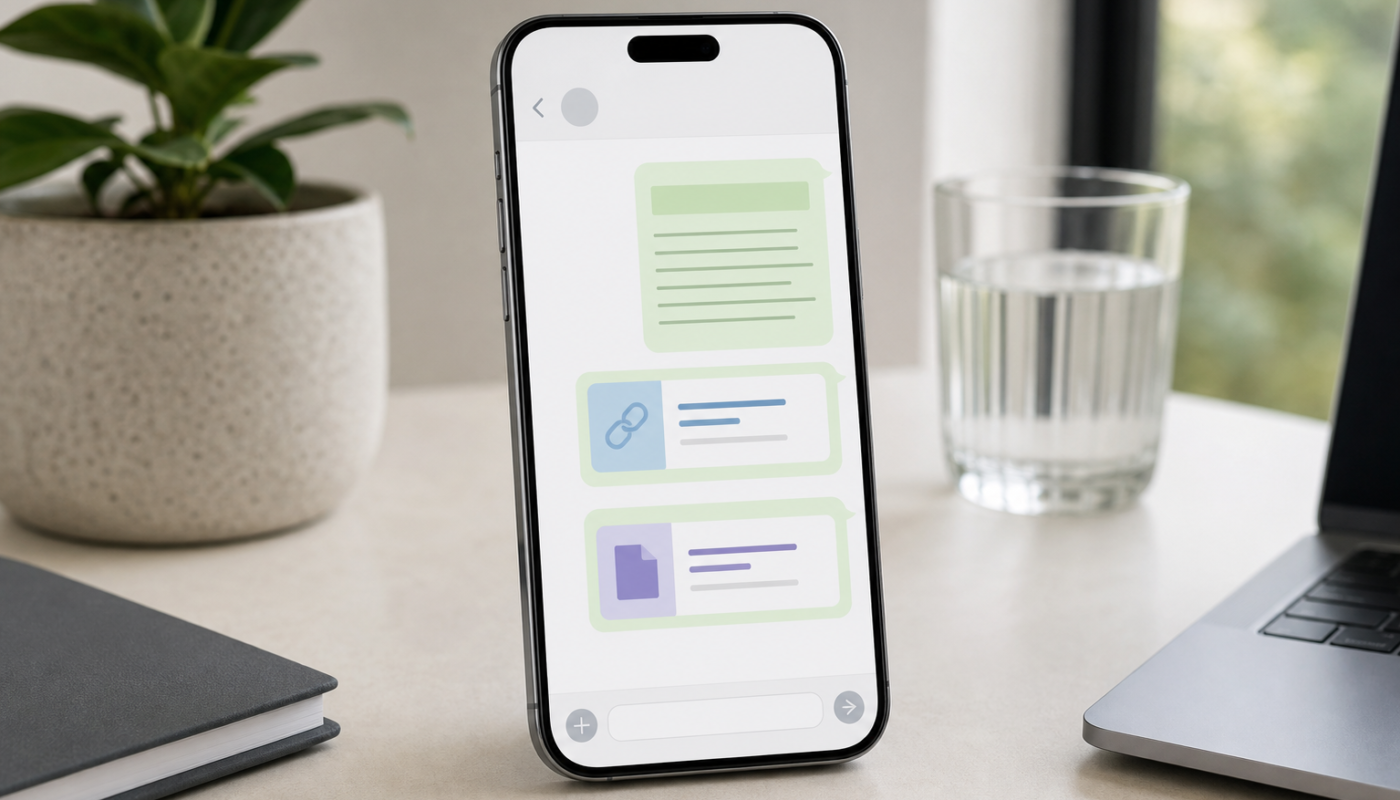
Learning how to message yourself on WhatsApp gives you a convenient place to save quick notes, links, photos, documents and reminders. Instead of sending information to a friend or opening another notes app, you can keep useful items in a WhatsApp self-chat that is available across your phone and linked devices.
The feature is generally called Message yourself, although the wording and layout can vary between Android, iPhone, WhatsApp Web and Desktop. The steps below cover the usual methods, plus a few practical tips for organising your personal WhatsApp notes.
How to message yourself on WhatsApp
On an iPhone or Android phone
- Open WhatsApp and go to the Chats tab.
- Tap the New chat button. On iPhone, this is usually the compose icon in the top-right corner; on Android, it is commonly the chat bubble button in the lower-right.
- Use the search field and type your name or your full mobile number, including the international country code if needed.
- Tap your contact when it appears. WhatsApp may display (You) beside your name or show a Message yourself option.
- Send a test message, such as “Personal notes”, so the conversation is easy to recognise later.
Your personal conversation should now appear in the Chats list. You can open it whenever you want to send a message to yourself on WhatsApp, attach a file or save something for later.
Using WhatsApp Web or Desktop
On WhatsApp Web or the official Desktop app, select the New chat icon and search for your own name or number. Choose the contact marked as you, then send a message. If you have already opened the self-chat on your phone, it should also be visible on linked devices after the chat list synchronises.
Menu names can change as WhatsApp updates its apps. If you cannot see the chat immediately, search for your own contact rather than relying only on the New chat screen.
What to do if your WhatsApp self-chat is missing
Most problems are caused by contact matching rather than the messaging feature itself. Try these checks in order:
- Save your number in Contacts: Add your own mobile number to your phone’s address book with the correct country code. For an Australian number, this normally means using +61 and removing the leading zero, but check the format used by your mobile provider.
- Search by number: Search for the complete number instead of your saved contact name.
- Refresh contacts: On Android, the New chat menu may include a refresh option in its overflow menu. On iPhone, close and reopen WhatsApp after confirming that it has permission to access Contacts.
- Update WhatsApp carefully: Install updates from the official App Store or Google Play. The exact interface depends on your app version, operating system and account configuration.
- Use a direct chat link: As a fallback, a WhatsApp click-to-chat link can open a conversation using your full international number. The number is entered as digits only, without spaces, brackets or the plus sign. Check the address carefully before opening or sharing it.
If the conversation still does not appear, restart the phone and check that you are using the correct WhatsApp account and mobile number. Avoid downloading unofficial WhatsApp versions or contact-management apps that request unnecessary access to your messages.
How to use WhatsApp notes for everyday tasks
A WhatsApp self-chat works best as a quick capture area, not as a full project-management system. You can use it for:
- Short notes: Save an address, measurement, idea, shopping item or reminder while you are away from your usual notes app.
- Links to read later: Send yourself articles, product pages, recipes, maps and booking links. Add a short description so the purpose of each link is clear.
- Photos and screenshots: Keep a screenshot of a receipt, reference number, instruction or item you want to compare later.
- Files: Send PDFs, documents and other supported attachments to make them available on a linked computer. File limits and supported formats can change, so verify important documents before relying on WhatsApp as the only copy.
- Voice notes: Record an idea or reminder when typing is inconvenient, then delete it once you have transferred the information elsewhere.
Keep the chat organised
Pin the self-chat if your WhatsApp version offers that option. For longer-term items, star important messages so they are easier to find later. Search within the conversation using a distinctive word, such as “tax”, “travel” or “invoice”, rather than scrolling through months of messages.
You can also create a simple system using labels in the message text, for example:
- TODO: actions you need to complete
- LINK: websites to revisit
- INFO: reference details
- FILE: documents you may need on another device
WhatsApp is useful for fast capture, but it is not always the best place for sensitive records, extensive archives or structured lists. Move important information into a dedicated notes, cloud-storage or task app when appropriate.
Privacy, backups and file safety
Your self-chat is still part of your WhatsApp account. Treat it with the same care as any other conversation, especially if your phone or a linked computer could be accessed by someone else.
- Enable screen lock and two-step verification: Use your phone’s passcode or biometric lock, and review WhatsApp’s account security settings.
- Check linked devices: Remove computers or browsers you no longer recognise or use.
- Be selective with sensitive material: Avoid storing passwords, full payment-card details, identity documents or confidential work files in a casual chat.
- Review backup settings: WhatsApp backups can have separate privacy and encryption settings. Check the current options in WhatsApp and your cloud account before assuming a chat is protected in a particular way.
- Delete outdated files: Large videos and repeated documents can take up storage on your phone and account. Use WhatsApp’s storage-management tools to review them.
Do not confuse a self-chat with a private vault. If you share your phone, use a linked device in a public place or forward content to other people, information may be exposed. Be cautious with unsolicited links and attachments; the general risks of messaging spam also apply on WhatsApp.
When a different app may be better
WhatsApp is a practical choice when you already use it every day and want quick access to saved information across devices. However, a dedicated notes app may be better for formatted writing, notebooks, checklists, handwriting, advanced search or long-term archiving. Cloud storage is usually more suitable for a large collection of documents, while a task manager is better for deadlines and recurring reminders.
If you are collecting links from several platforms, remember that the source app may have its own sharing and privacy controls. Our guide to social media updates across Instagram, TikTok, LinkedIn and X can help you keep track of changes that affect how content is shared.
Final takeaway
To message yourself on WhatsApp, open a new chat, search for your own name or full mobile number, and select the contact marked as you. Use the self-chat for quick WhatsApp notes, links, photos and temporary file transfers, then pin or search the conversation to keep it manageable. For anything sensitive or important, use strong account security and keep a separate, appropriate backup.
What to check next
WhatsApp’s button names and privacy options can change between app versions and operating systems. If a step looks different, check WhatsApp’s current Help Centre guidance and review your linked devices, backup settings and available storage.

[…] How to Message Yourself on WhatsApp: Save Notes, Links and Files […]