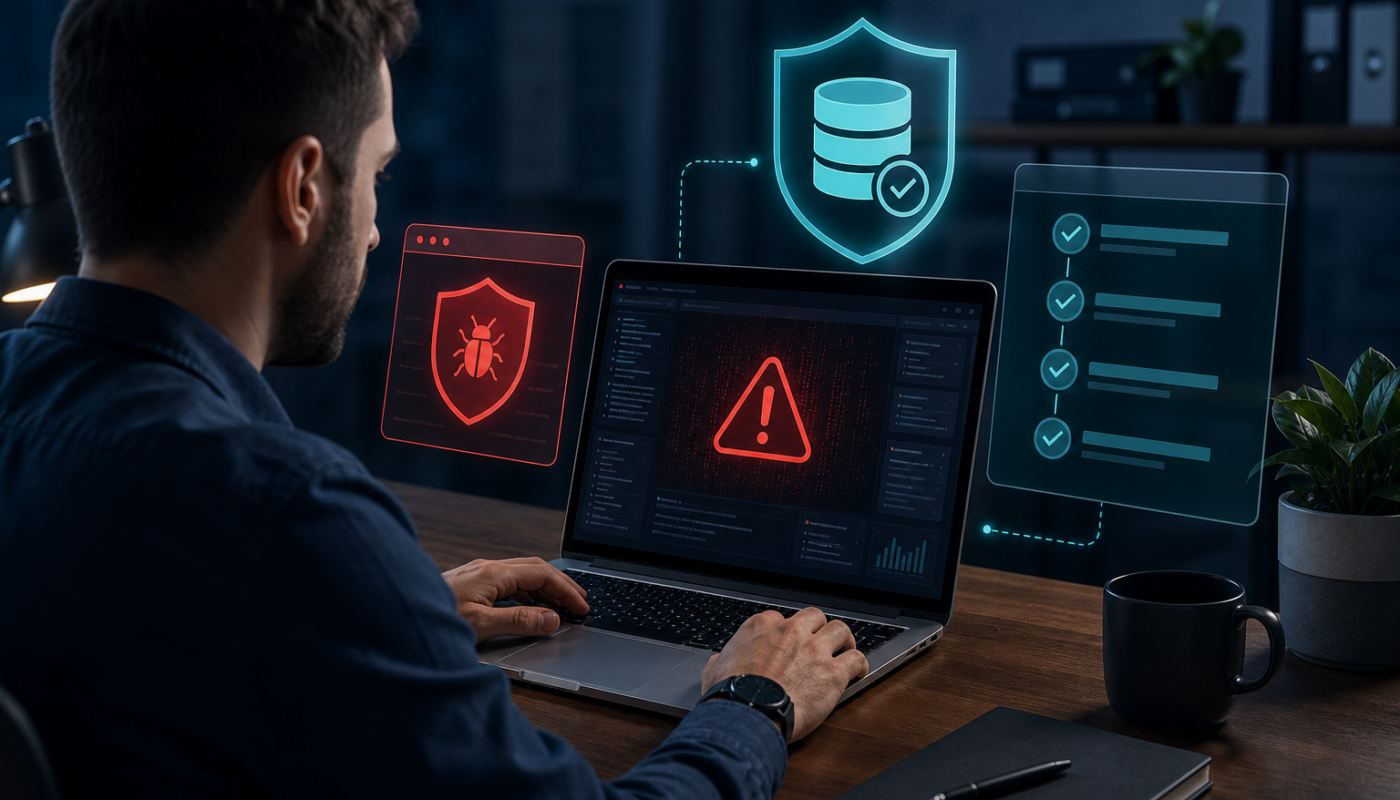
Finding your wordpress site hacked can be alarming, particularly if visitors are being redirected, spam pages have appeared or you have been locked out of the dashboard. Avoid rushing into random plugin installations or deleting files. A calm, documented response gives you a better chance of preserving evidence, removing the attacker’s access and restoring a trustworthy copy of the site.
This checklist covers the main stages of WordPress hack recovery: contain the incident, identify what changed, clean or restore the website, rotate access credentials and strengthen security afterwards. If the site handles payments, customer information or business email, involve your hosting provider and a qualified security professional early.
WordPress Site Hacked? Contain the Damage First
The first priority is to stop the compromise becoming worse. If the website is displaying malicious content or sending visitors to suspicious destinations, ask your host whether the site can be placed into maintenance mode or temporarily taken offline. A temporary outage is usually preferable to exposing customers to malware or phishing pages.
- Do not log in repeatedly if your account appears compromised. Use a known-clean device and trusted network where possible.
- Contact your hosting provider and request an incident review. They may have server logs, malware scans and backups that are not available from WordPress itself.
- Record what you see, including suspicious URLs, changed pages, unfamiliar users, warning messages and the approximate time the problem began.
- Do not immediately delete suspicious files if you may need forensic information. Your host or security specialist can advise what should be preserved.
- Warn affected users when appropriate. If personal information may have been accessed, seek professional advice about your obligations under applicable Australian privacy and breach-notification requirements.
Use a separate, clean device to change the password for the email account associated with WordPress, your hosting account and your domain registrar. If an attacker controls your email, they may be able to reset every other password. Enable multi-factor authentication wherever the provider supports it.
WordPress Hack Recovery: Find the Entry Point
A clean-looking homepage does not prove that a hacked WordPress installation is safe. Attackers may hide backdoors in plugin files, upload directories, database content or scheduled tasks. They may also create administrator accounts or alter existing files so the compromise returns after a superficial clean-up.
Check accounts, files and settings
After access has been secured, review the WordPress dashboard and hosting control panel. In the dashboard, check Users for unfamiliar administrators and review recent changes if your security tools provide an audit log. Remove unauthorised accounts only after recording their details for your investigation.
Review active plugins and themes, especially anything that is abandoned, nulled, pirated or downloaded from an unofficial source. Deactivate and remove software you do not need. Check whether core files have been modified and look for unexpected PHP files in writable locations such as upload folders. Do not open or execute suspicious files on your computer; ask your host or a security professional to examine them safely.
Also inspect:
- WordPress administrator accounts and unfamiliar API or application passwords
- Hosting, FTP, SFTP, SSH, database and domain registrar users
- Redirect rules in
.htaccessor equivalent server configuration - Unknown scheduled tasks, cron jobs and recently created databases
- Injected scripts, spam links and unfamiliar content in posts, pages, widgets and theme templates
- WordPress URLs, site settings and email settings that have been changed without permission
For background on common weaknesses, see this guide to WordPress security vulnerabilities and how to patch them. The exact investigation process varies between shared hosting, managed WordPress hosting and self-managed servers, so follow your provider’s instructions rather than assuming every environment has the same tools.
Use a known-clean backup carefully
If you have a backup from before the incident, restoring it is often safer than trying to remove every malicious change manually. However, do not restore blindly. Confirm when the backup was created, whether it includes the database as well as files, and whether the vulnerability that allowed the attack is still present.
Before restoring, preserve a copy of the compromised site if your host can provide one. Then restore to a clean environment or staging site where possible. Update WordPress core, plugins and themes before making the restored site public. Replace compromised credentials and inspect the restored database for unauthorised content. A backup is useful only if it is both clean and complete.
Clean and Verify a Hacked WordPress Website
There are two broad recovery approaches: professional cleaning or a full rebuild from trusted sources. A reputable security provider can scan files, compare core files with official versions, inspect the database and look for persistence mechanisms. Be cautious with services that promise instant removal without explaining what they check or how they prevent reinfection.
For a rebuild, download WordPress core, themes and plugins from their official sources or trusted vendor accounts. Do not copy old plugin or theme files into the new installation unless they have been checked. Keep media files only after scanning them, because image and document directories can sometimes contain unexpected executable files.
After cleaning or rebuilding:
- Change every relevant password, including WordPress, hosting, database, SFTP, SSH, domain and email credentials.
- Revoke unknown application passwords, active sessions and API keys.
- Remove unauthorised users and reset passwords for legitimate administrators.
- Update the site and remove unsupported plugins, themes and unused accounts.
- Check the database, redirects, homepage, navigation, forms and outgoing email.
- Test the site from a clean browser and device, including mobile pages and logged-out views.
- Ask your host or security service to rescan the site and server.
If Google or another browser has flagged the domain, check the relevant webmaster and security tools after the site is clean. Request a review only when you are confident the cause has been fixed; otherwise, the warning may return.
Prevent Another WordPress Website Hack
Recovery should end with a practical security plan, not just a restored homepage. Start with the basics: keep WordPress core, plugins and themes updated, remove software you no longer use and buy extensions only from reputable sources. Updates matter because they often address security defects, but test significant changes on staging where your setup allows it.
- Use least privilege: give contributors and contractors only the access they need, and avoid using an administrator account for routine publishing.
- Enable MFA: protect WordPress administrator, hosting, email and domain accounts, with priority given to accounts that can reset others.
- Maintain independent backups: automate backups, retain more than one recovery point and test restoration regularly. Store at least one copy separately from the website account.
- Add monitoring: use a reputable security plugin, managed host controls or a web application firewall to detect file changes, suspicious logins and malicious traffic.
- Harden hosting access: use SFTP or SSH rather than insecure file transfer methods where supported, restrict access when practical and review server logs.
- Protect forms and email: use spam controls, keep contact details out of unnecessary public locations and investigate unexpected outgoing messages.
Our WordPress security practical checklist can help turn these recommendations into a repeatable maintenance routine. If you want broader context, the AI cybersecurity guide explains how automated detection can support, but not replace, sound security processes.
When to Call a Professional
Get specialist help if the attacker still has access, the site stores sensitive information, multiple websites share the same hosting account, or the infection returns after restoration. Professional assistance is also sensible when server files, database records or business email may have been affected. Ask for a written summary of what was found, what was removed, which credentials must be changed and how the provider verified the clean-up.
Do not assume that changing the WordPress password alone resolves a wordpress hacked incident. Attackers may have gained access through hosting, a vulnerable extension, stolen email credentials or another administrator account.
What to Check Next
- Confirm that all administrator, hosting, email and domain passwords have been rotated from a clean device.
- Verify that backups restore successfully and include both files and the database.
- Review logs and monitoring alerts for several weeks after recovery.
- Check search-engine warnings, redirects, forms and outgoing email.
- Schedule regular updates and a quarterly access review.
Actionable takeaway: contain the site, preserve useful evidence, restore from a verified clean backup or rebuild from trusted sources, then close the original access gap. A structured response is the safest path when your WordPress website is hacked.
For general background, you can also read about WordPress and its publishing platform ecosystem.